🗂️ Asset Import and Editor Integration
This page explains how to bring your .sspj into a Godot project (the initial conversion) and the workflows for iterating quickly between SpriteStudio and Godot afterwards.
Besides playing animations, SpriteStudio Player for Godot lets you move between SpriteStudio and Godot as you iterate, from tweaking an animation to seeing it in the game.
1. Initial Import (Converting via the SS Importer dock)
If there is no .ssab in your Godot project yet, you first need to import (convert) the SpriteStudio project file (.sspj).
- Open the "SS Importer" dock on the right side of the Godot editor.
- Check the output directory (default is
res://ssab_generated). - Drag and drop the
.sspjfile from your Explorer/Finder into the "SS Importer" dock.
This triggers the conversion process. The .ssab and .ssqb files, with the textures beside them, are written to a folder named after the .sspj in the output directory — res://ssab_generated/Ringo/ for Ringo.sspj (see Generated Assets and Packs).
Drag and drop the generated .ssab file into the 2D viewport to place a SpriteStudioPlayer2D node in advance (see Basic Usage for details).
Tip
Tip
If you do not have a .sspj yet and just want to try this out, the official SpriteStudio sample data works as-is (that page is only available in Japanese; the downloads themselves are language-neutral). Ringo is a good character sample, and Particle is a good one if you want effects. Drop the downloaded .sspj onto the "SS Importer" dock exactly as described above.
2. Opening SpriteStudio Directly from Godot
When working in Godot and feeling the need to tweak an animation, you don't have to launch SpriteStudio separately and search for the project.
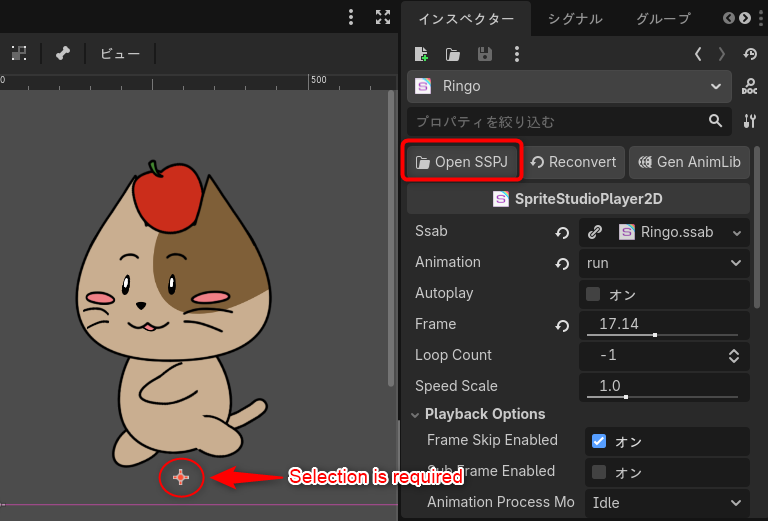
- Select the
SpriteStudioPlayer2Dnode playing the animation in the Godot editor. - Click the "Open SSPJ" button shown at the top of the Inspector.
This action automatically launches SpriteStudio and opens the underlying .sspj file, allowing you to start editing immediately.
An .ssab that is not in a scene opens the same way: double-click it in the FileSystem dock and the Inspector shows the same buttons. The menu you get by right-clicking an .ssab has "Open SSPJ" too.
Note
3. Reconverting After Saving in SpriteStudio
After modifying and saving the animation in SpriteStudio, return to the Godot editor. With just the following steps, your changes will instantly reflect in the game (and in the editor preview).
- As before, select the node to show the Inspector (or double-click the
.ssabin the FileSystem dock). - Click the "Reconvert" button next to the "Open SSPJ" button. Right-clicking the
.ssabin the FileSystem dock and choosing "Reconvert" reconverts it too.
Important
The shortest workflow: "Open" -> "Save" -> "Reconvert" You can call SpriteStudio directly from the Inspector with the node selected, and immediately reconvert in Godot after editing.
Tip
Tip
What each file in the output folder does, how they depend on each other, which of them you have to re-ship after each kind of edit, how to choose an export mode, and how to ship updates as a .pck are collected in Generated Assets and Packs.
Limitations and Team Development Notes
Open SSPJ and Reconvert have some limitations. Keep them in mind, especially when working in a team.
Warning
SpriteStudio installation is required
Clicking the "Open SSPJ" button will launch SpriteStudio. Therefore, SpriteStudio must be installed on the PC you are using. In the Godot editor on Linux the "Open SSPJ" button (and the menu entries of the same name) is not shown; open the .sspj in SpriteStudio yourself, then use Reconvert.
Tip
File Path Sharing and Smart Re-link for Team Development
When you import using the SS Importer dock, the integration information (the file path to the .sspj) is saved as a relative path inside the .ssplayer_sources.cfg file located at the root of your Godot project.
By tracking .ssplayer_sources.cfg in a version control system like Git, team members can git clone the project and immediately use the Open SSPJ and Reconvert buttons, as the paths remain valid across different PCs.
Furthermore, if the .sspj file is moved and the link breaks, it is easy to fix. Right-click the broken .ssab in the FileSystem dock and select "Reconvert". You will be prompted to locate the new .sspj location. By re-linking just one file, all other related files in the same directory will be automatically and smartly re-linked, minimizing manual repair efforts.